
Close failed inspections without driving back.
The business uploads a photo of each correction, the inspector accepts it from the desk, and the inspection closes just as it would after a second visit. It all happens on the same property record your permit desk, ITM reviewers and investigators already use.

An inspection module bolted onto a response RMS records the visit and stops there.
Inspections are where your department meets every business it protects. A module built for someone else's job keeps the building's other records somewhere else, leaves the follow-up to a spreadsheet and a phone call, and cannot say why one building comes before another.
The inspection knows nothing about the building
The sprinkler contractor's last report, the permit under review and the open code case live in other systems, so the inspector walks in without them and your other divisions never see what the inspection found.
The inspection sits on the property record that also carries its permits, each protection system's ITM status, code cases and fire investigations, and what the inspection finds is on that record for every division.
The re-inspection is a drive
Whether the business replaced the extinguisher is answered by going back, because the module has no way for the business to show you.
The notice carries a link where the business uploads its correction photos, so a trip is only for what still needs eyes.
Nobody can say why this building is next
A list sorted by due date treats a vacant warehouse and an assisted living facility the same, and a discretionary choice has no reasons behind it.
The priority queue ranks properties by risk and prints the reasons beside every score.
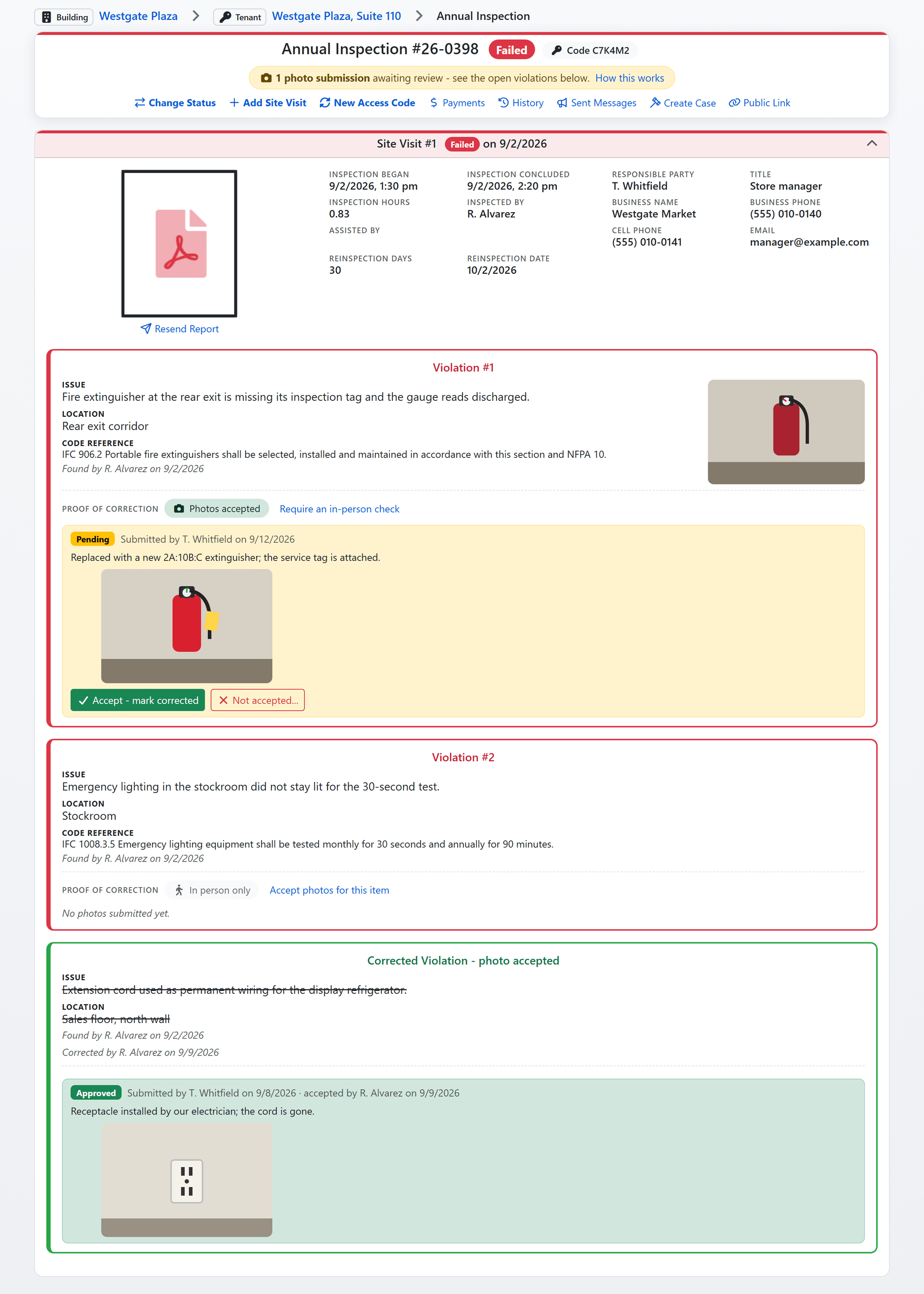
Shown with sample data. The photo is the business's submission; the inspector accepts it or sends it back with a reason. Click the image to see the whole page.
The business sends the photo. You decide from the desk.
A Failed notice carries an access code. The business enters it on your public site, links the inspection to its account and uploads a photo of each correction. The assigned inspector is emailed and accepts or rejects from the record. When the last open violation is accepted, a self report closes the inspection through the ordinary Passed path, so the report, the certificate and the permit follow exactly as if the inspector had driven back.
- One code on the notice: printed on the Failed notice and shown on the record, so an inspector can read it out over the phone. A leaked code is replaced with a click.
- A submission per violation: each open violation takes its own photos and a note to the inspector, and the record shows who linked with the code and when.
- Accept, or send it back with a reason: accepting marks the violation corrected in place. Rejecting requires a reason, the business reads it, and they can try again.
- In person only where it must be: flag a violation that needs the inspector's own eyes and photos are refused for that item, with the reason shown to the business.
- A queue, never a status: photos waiting for review are a queue with a count in the sidebar. The inspection stays Failed until every violation is corrected, and a waiting photo changes nothing on its own.
Shown with sample data.
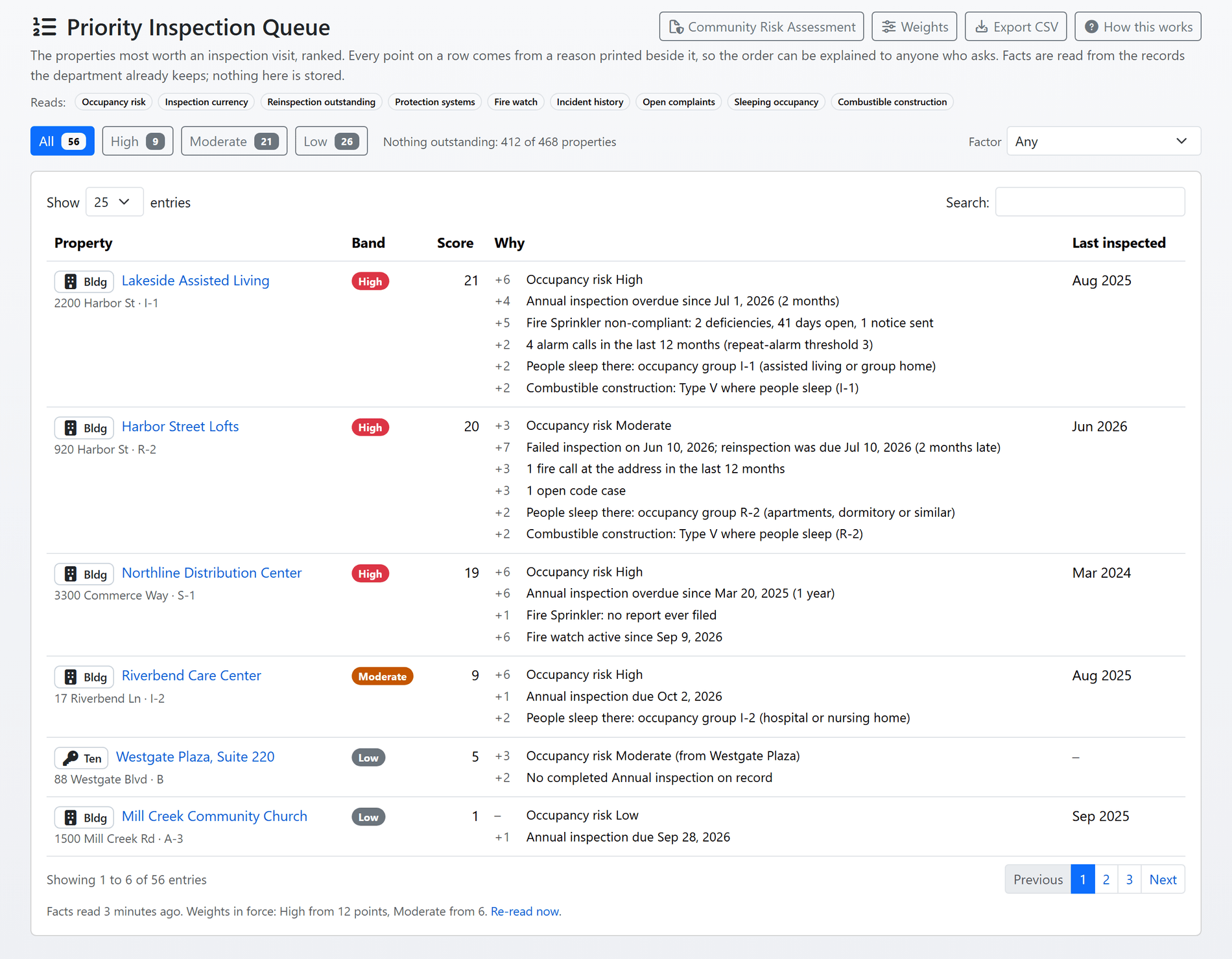
Shown with sample data. Click the image to see the whole page.
Every property ranked, and every point explained.
The queue ranks the properties most worth a visit from the records your department already keeps: the occupancy risk rating, whether the recurring inspection is current, a failed inspection with its re-inspection date passed, non-compliant protection systems from ITM reports, an active fire watch, fire and alarm calls at the address, and open code cases. Every point on a row is a printed, dated sentence, so the order can be defended to anyone who asks.
- Reasons, not a score: "Annual inspection overdue since Mar 20, 2025 (1 year)" is a line on the row. There is no hidden multiplier and no model; a ranking used to choose inspections is a discretionary-enforcement record.
- Your weights: an administrator sets the points per factor and the floors for High and Moderate. The queue is derived when the page is read, so a change reprices every property on the next load.
- Honest about what it cannot see: a factor your department has no data source for is labeled not available on every row, never a silent zero.
- NFPA 1730 beside the rating: the property's risk card suggests an annual, biennial or triennial cycle from its rating, so the policy conversation starts from the standard.
- Filter and export: narrow the queue to one band or one factor, export it as CSV, and open the Community Risk Assessment that reads the same factors.
Shown with sample data.
Shown with sample data. Click the image to see the whole page.
Violations in your department's words, written in the building.
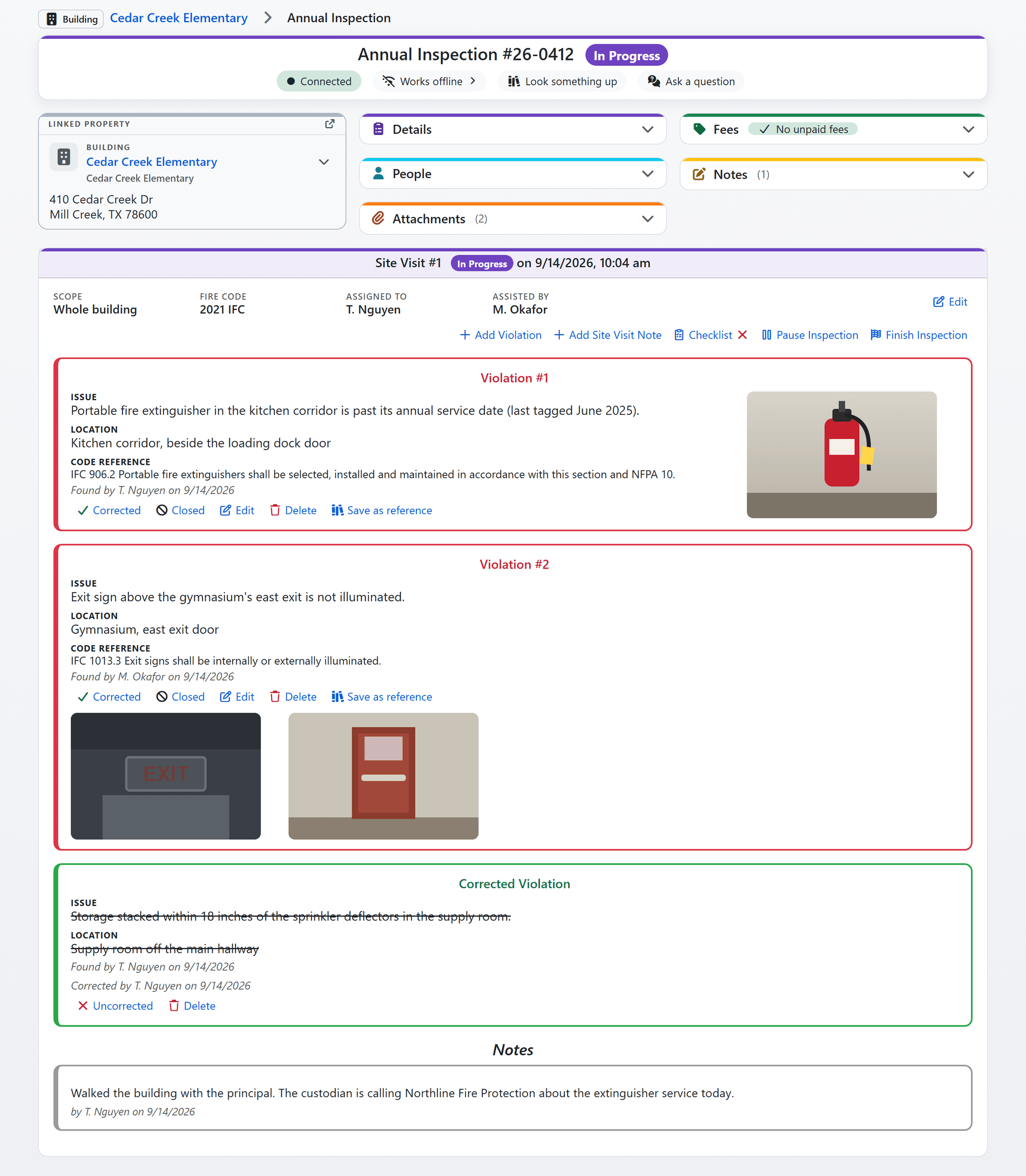
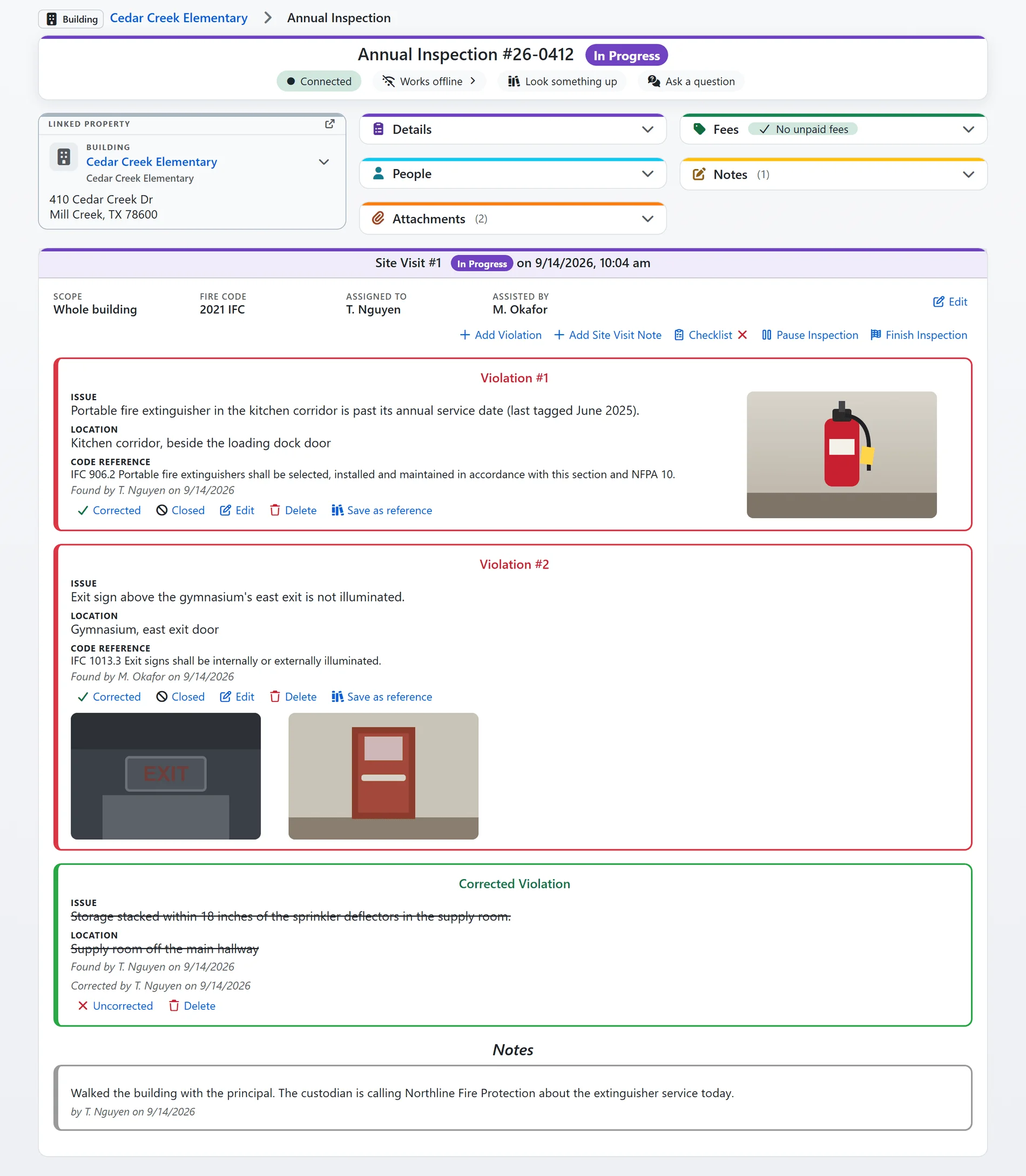
An inspector opens the inspection on a phone, tablet or laptop, taps Begin and works the site visit: your department's own form, each violation with its photos and code reference, and the report sent before leaving. As a violation is typed, the wordings your department has written before are offered back, so every inspector cites the same problem the same way.
- Suggestions from what was written before: as the inspector types, violations your department has written before are offered back, so wording and code citations stay consistent across inspectors.
- One violation, every place it was found: a problem found on six floors is one violation listing six places, each cleared on its own as it is fixed. The report says how many places are still open, and your statistics count the violation once.
- Violations with photos: issue, location and code reference, with photos taken with the device's camera as the violation is written. Photos print on the report and stay on the record.
- Inspection forms and checklists: your department's own forms, one per inspection type with variants for the occupancies that differ. Every item takes Yes, No or N/A with a note and photos; a No starts the violation for you; a required form holds Finish until every item is answered; and the form prints on the report where you want it to.
- Corrected on the spot: a violation fixed while the inspector is standing there is marked corrected and printed that way, not carried to a re-inspection.
- Works offline: lose the signal in a basement or a parking garage and the inspection keeps going. Form answers, new violations, notes and photos are kept on the device and sent when the connection returns.
- Look something up: a references shelf one tap from anywhere on the page, with the code references your department curates and the violations it has written, cached for the places with no signal.
Shown with sample data.
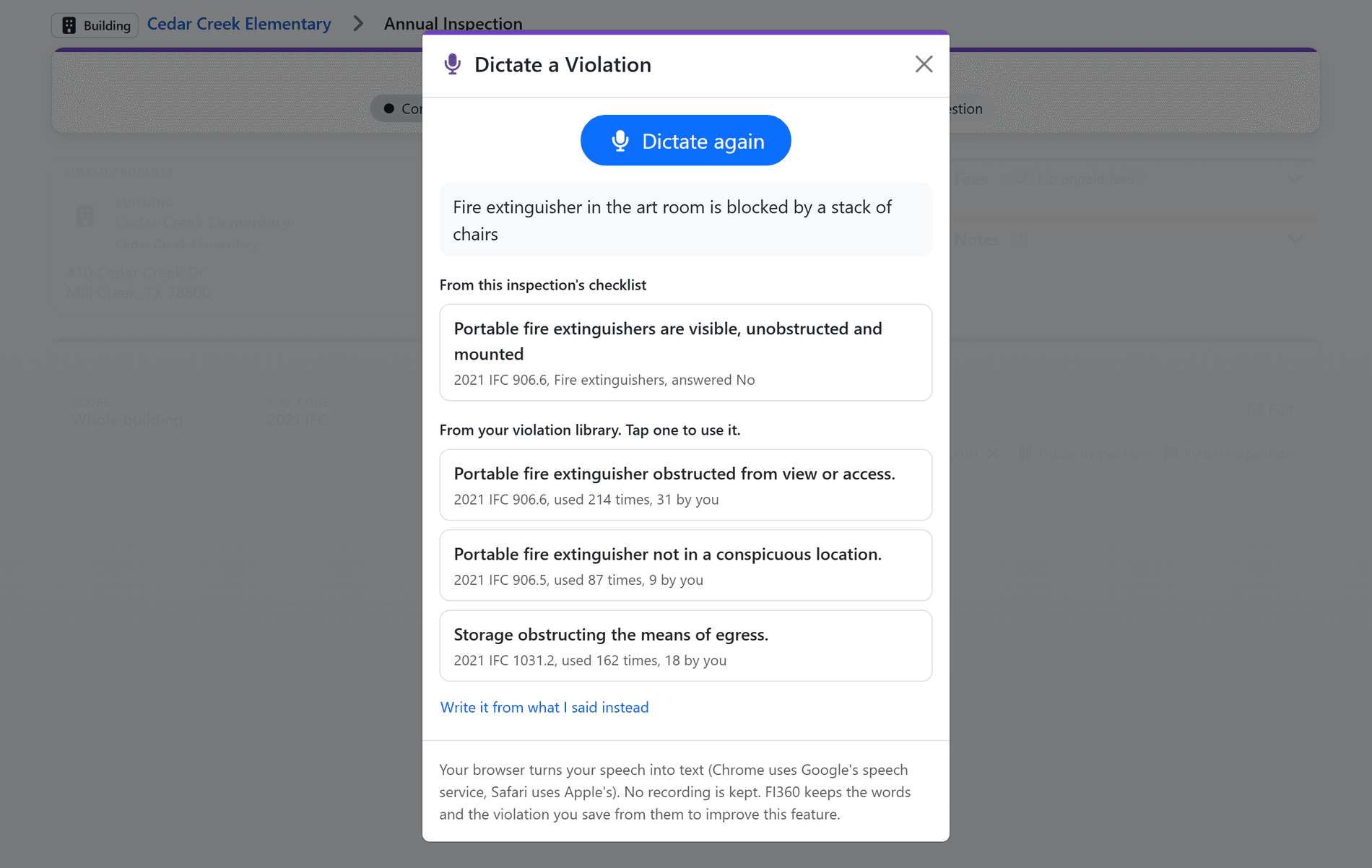
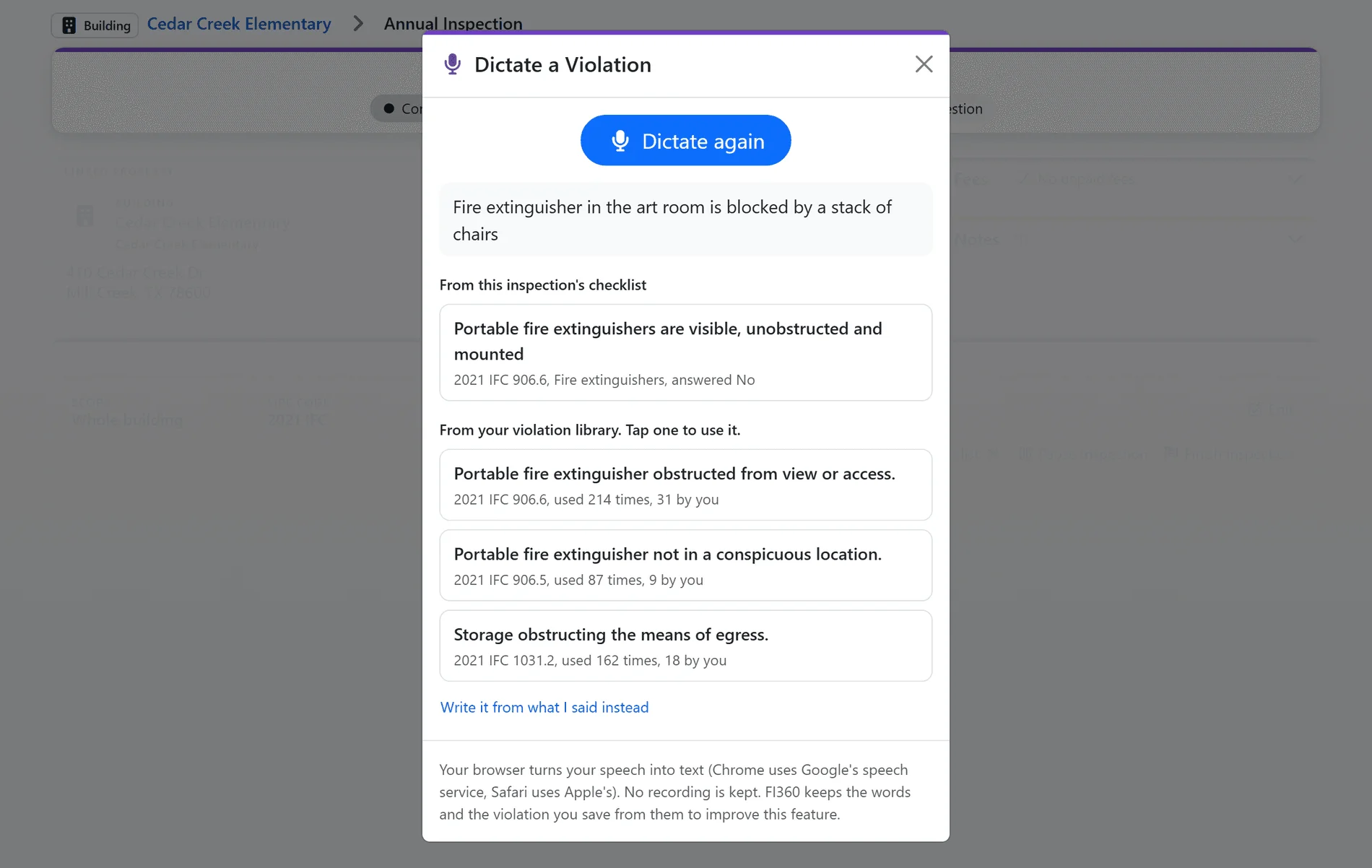
Shown with sample data. The inspector said the sentence in the grey box; tapping a match opens the Add Violation form filled in. Click the image to see the whole page.
Say the violation. Pick your department's wording.
Tap the microphone and say what is wrong and where. The words are matched against this inspection's own checklist and the violations your department has written before, each shown with its code citation and how often it has been used. Tap one and the Add Violation form opens filled in, for the inspector to check, add photos and save.
- This inspection's checklist first: items on the inspection's own form that match what was said are listed above the library, with the ones answered No marked.
- Your department's wording and citation: each match from the violation library shows its code citation, how many times it has been written, and how many of those were by this inspector.
- Nothing is saved on its own: a match fills the ordinary violation form, and the inspector reviews it and saves. When nothing fits, the spoken words go into the form instead.
- In the browser, no app: Chrome, Edge and Safari turn the speech into text themselves, and no recording is kept.
Shown with sample data.
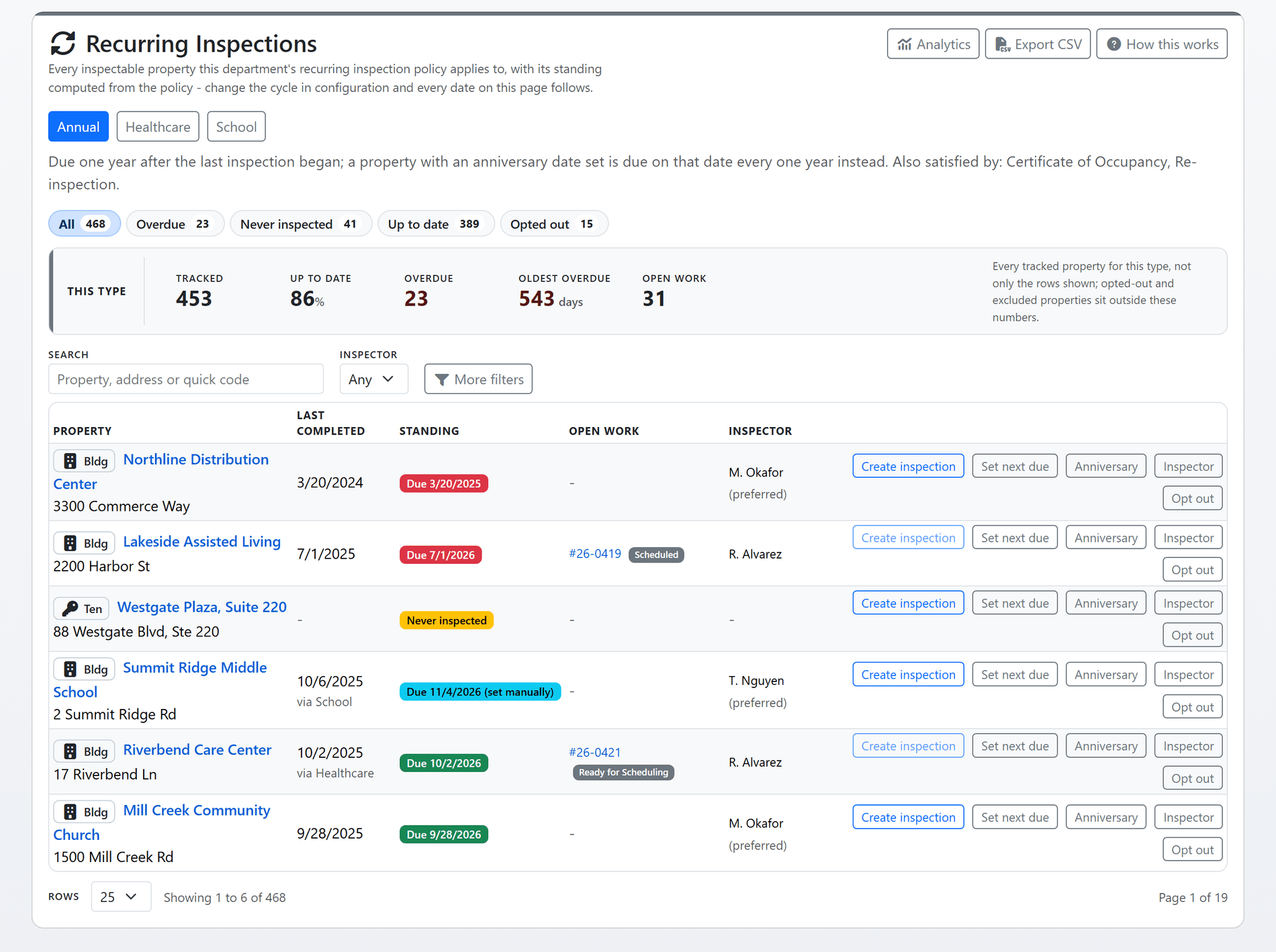
Shown with sample data. Click the image to see the whole page.
Annuals that keep themselves on schedule.
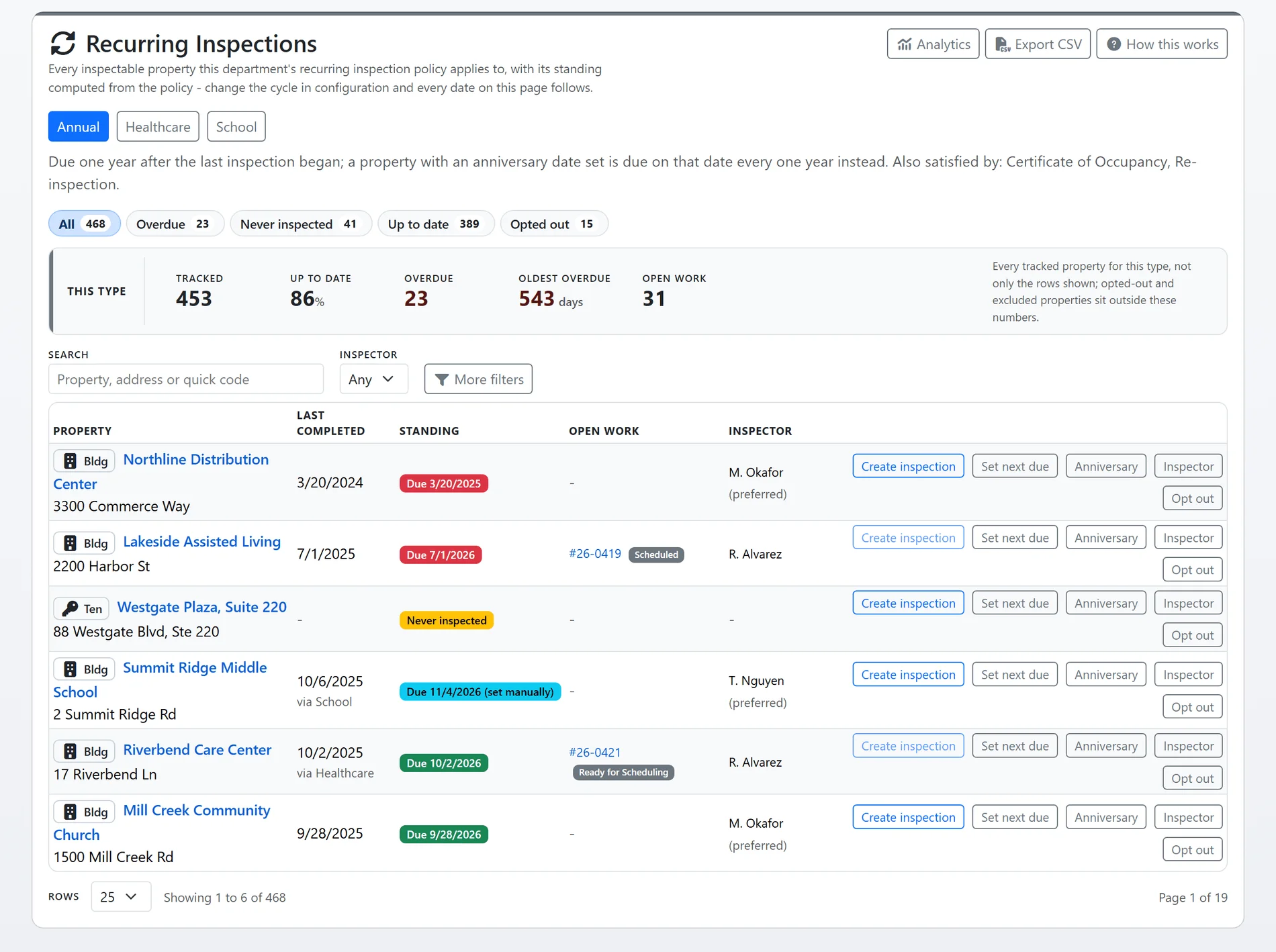
Tell the system your policy once, per inspection type: an anniversary cycle, an interval after each completion, or once in every calendar year. Every property's standing is derived from that policy when the page is read, so changing the cycle re-dates every property with no backfill, and a completed inspection credits the next due date by itself.
- Three policies, in your words: the page prints the policy as a sentence a fire marshal would recognize as their own, and which other inspection types satisfy it.
- Standing at a glance: overdue, never inspected, up to date and opted out, with counts, the oldest overdue property in days, and the open work already assigned per property.
- A property can be an exception: set a next due date by hand, fix the anniversary, name a preferred inspector, or opt a property out with a reason that stays on the row.
- Which properties it applies to: every inspectable property, only the ones enrolled, or the ones carrying a property tag your department chooses.
- From the list to the calendar: create the inspection from the row, and the inspector's homepage shows the annuals due this year that have not been started.
Shown with sample data.
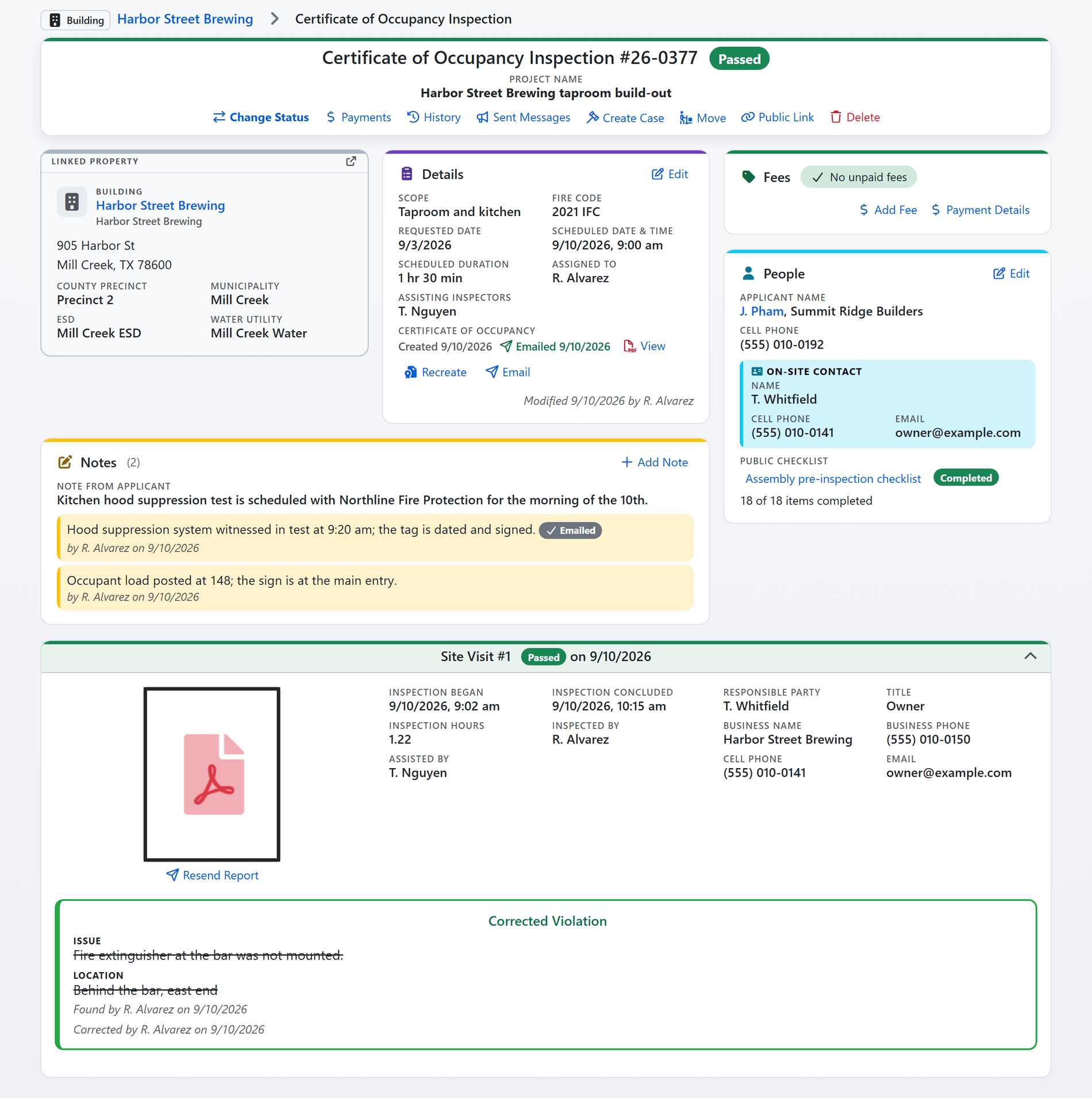
Shown with sample data. Click the image to see the whole page.
One record from the request to the certificate.
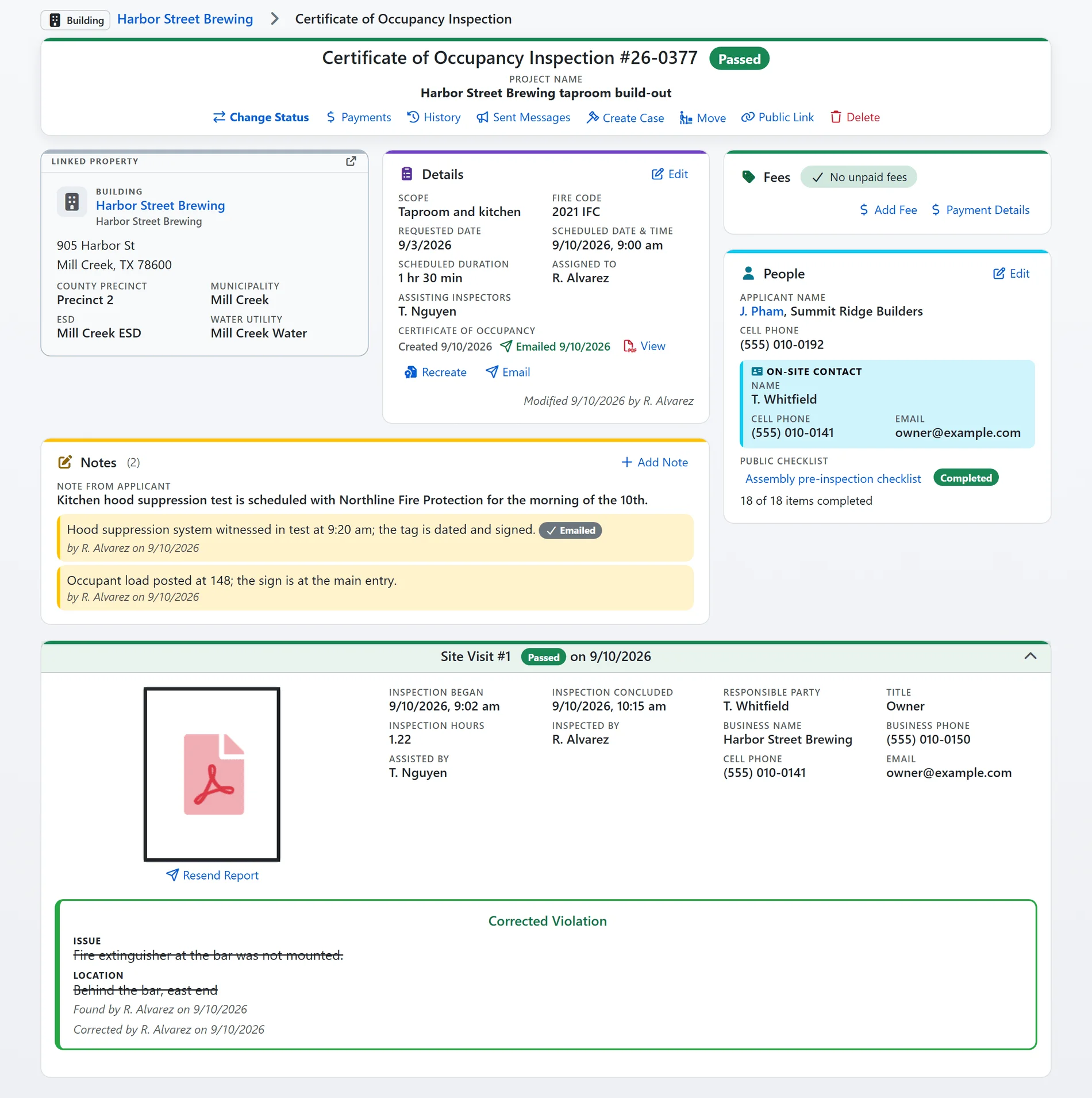
Every inspection is one page: the linked property, the details, the fees, the people, the notes, the files, and every site visit with its report, in the same design as the permit and the property record. The people who schedule, inspect and collect the fee all read the same thing.
- Fees, invoiced and paid online: a fee on the record is invoiced, the payer is emailed, and payment runs through your department's own provider. The header says what is still unpaid until it is not.
- Certificates from the record: a certificate of occupancy or your own certificate type is created from the inspection with the fields your department uses, emailed from the record, and listed as due until it has been sent.
- Calendar invites: scheduling sends the inspector and any assisting inspectors a calendar invite, updated when the assignment changes and withdrawn when the inspection is cancelled.
- A QR code on every report: the report PDF carries a QR code to a public page that shows what the report showed and whether a fee is still owed, and nothing more.
- History and sent messages: every status change and every email the record has sent, one click from the header.
- The property record, filled from the parking lot: after Finish, a prompt offers the property's missing facts, the occupancy class and construction type, for a one-click save.
Shown with sample data.
And that is only the start
Forms your department writes
Write an inspection form for any inspection type on one page, with the code section beside each item, named variants per occupancy, and a required switch that is read live, so no deploy and no ticket stands between a fire marshal and the next inspection's form.
Pre-inspection checklists
The applicant works through a public checklist before the visit, and the record shows how many items they completed when the inspector arrives.
My Day
The inspector's stops for the day as one list on the phone or tablet, installable like an app, with each inspection marked ready for offline before the drive.
The inspections map
Every inspection on the map of your district, filtered by status, type and inspector, with your boundary drawn where it belongs.
The public portal
Applicants request inspections, see the status, cancel a scheduled inspection until the day of, and ask for a re-inspection, without a phone call.
Analytics
Counts, outcomes and time on site by period and by inspector, read from the same records, with the past-due annuals card linking straight back to the recurring list.
See inspections with your own forms.
A one-hour walkthrough with a fire prevention expert, set up with your inspection types and forms, or the demo site right now.